Creating a PostScript file on a Macintosh from an
Application such as Microsoft Word or WordPerfect
- Select a PostScript printer driver from the Chooser if one is not your default printer
- Open your document in the active window of your application
- From the File
menu of your Application, select Print...
A Dialog Box should appear which looks like (or at least very similar to):
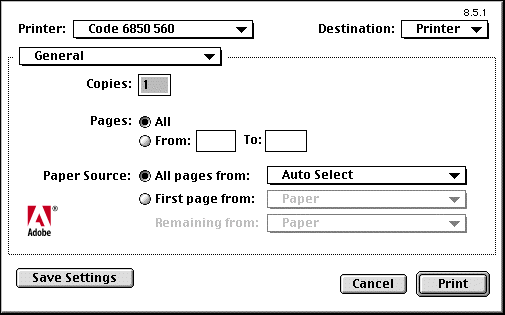 In the upper right hand corner change Destination: Printer to Destination: File
In the selection box on the right which defaults as General choose Save as File
The Dialog Box should now look like (or at least very similar to):
In the upper right hand corner change Destination: Printer to Destination: File
In the selection box on the right which defaults as General choose Save as File
The Dialog Box should now look like (or at least very similar to):
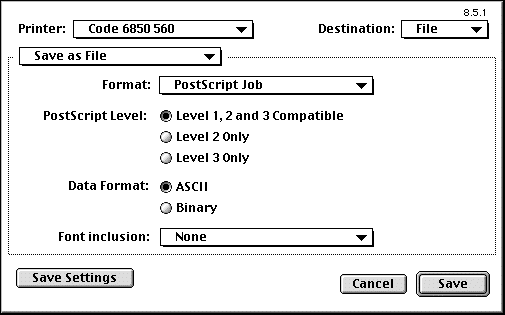 In the selection box near the bottom change Font Inclusion: None to Font Inclusion: All
The Dialog Box should now look like (or at least very similar to):
In the selection box near the bottom change Font Inclusion: None to Font Inclusion: All
The Dialog Box should now look like (or at least very similar to):
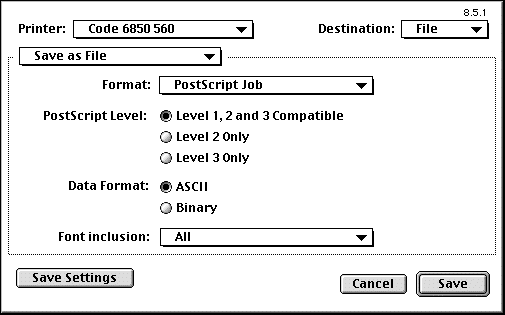 Please check the following items in case your Dialog Box was different
- the Format should be set to Postscript Job
- the PostScript Level should be set to be compatible with Level 1
- the Data Format should be set to ASCII
- the Font Inclusion should be set to All
Select the Save button in the lower right hand corner
A Dialog Box prompting you for a file name and a directory in which to save the file should appear which looks similar to
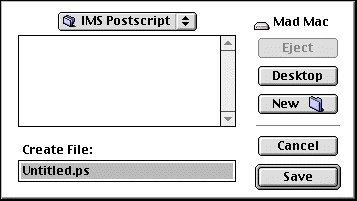 Save your file
This is the file you will later upload to over the IMS Paper Submission Web Site
Save your file
This is the file you will later upload to over the IMS Paper Submission Web Site